Interface
The SEABIM Editor launcher is a standalone PyQt5 window that opens on top of CloudCompare. It serves as the entry point for every action of the plugin and is organised in tabs by functional domain.
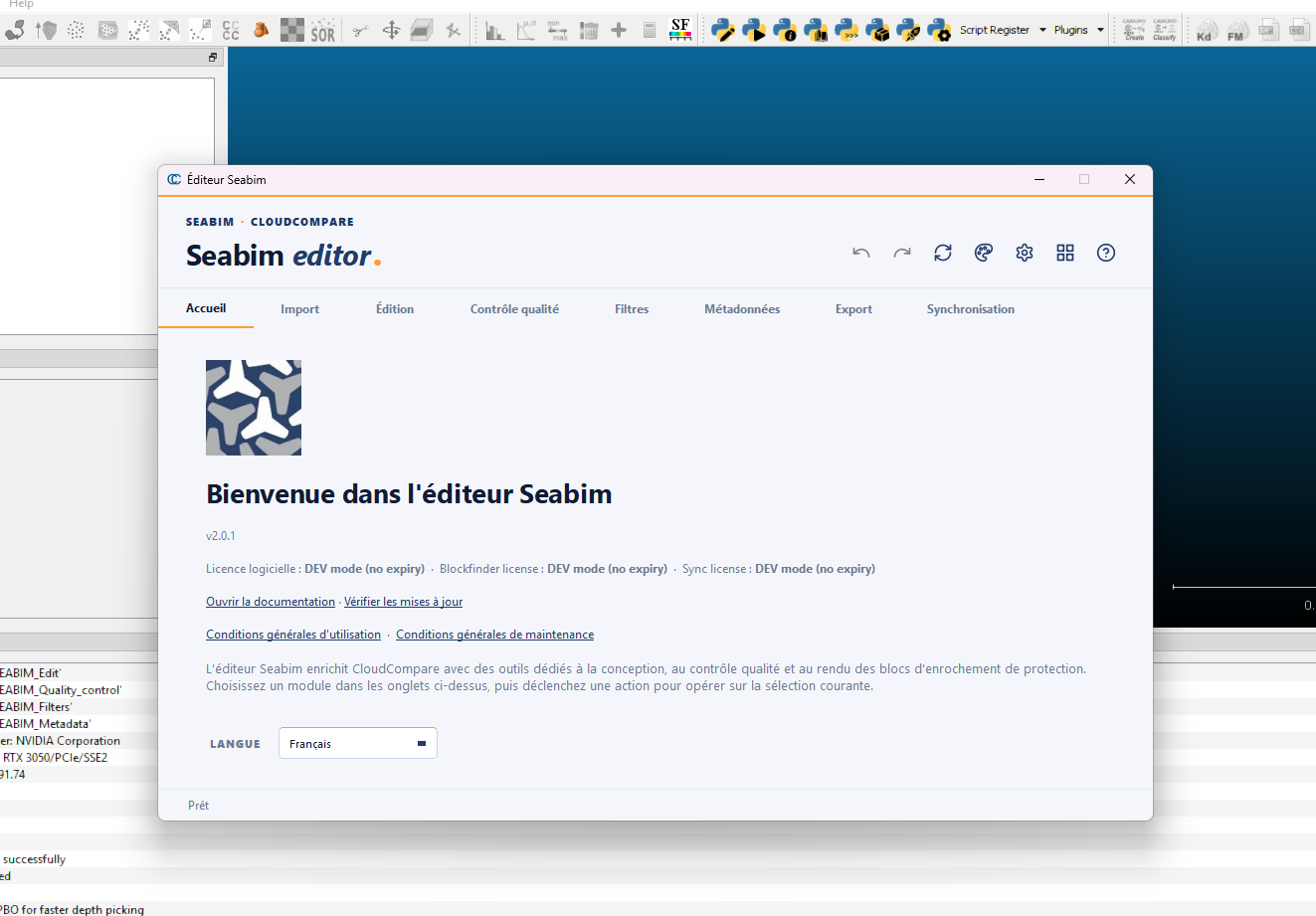
Anatomy of the launcher
┌────────────────────────────────────────────────────┐
│  ↶  ↷  ⟳  🎨  ⚙  ▭  ❓   ← Header (7 actions)    │
├────────────────────────────────────────────────────┤
│ Import | Edit | Quality control | Filters |        │
│ Metadata | Export   ← Module tabs                  │
├────────────────────────────────────────────────────┤
│                                                    │
│   [Action button 1]  [Action button 2]  …          │
│   [Action button 3]  [Action button 4]  …          │
│                                                    │
│              ← Active tab action area              │
└────────────────────────────────────────────────────┘
- The header exposes 7 cross-cutting actions accessible from any tab (see Header module).
- The tabs correspond to the business modules:
Import,Edit,Quality control,Filters,Metadata,Export(andSyncif enabled by license). - The action area displays the buttons of the active module, either as a vertical list or as a grid (the case of the Filters module which exposes 11 actions as a grid).
Available tabs
| Tab | Purpose | Detail |
|---|---|---|
Import |
Loading structures | Import module |
Edit |
Block editing | Edit module |
Quality control |
Quality metrics | Quality control module |
Filters |
Geometric filters | Filters module |
Metadata |
Metadata editing | Metadata module |
Export |
Saving and exporting | Export module |
Header — cross-cutting actions
The header is always visible:
| Icon | Action | Shortcut |
|---|---|---|
| ↶ | Undo | Ctrl+Z |
| ↷ | Redo | Ctrl+Y (alias Ctrl+Shift+Z) |
| ⟳ | Update view | Ctrl+R |
| 🎨 | Change color scale | Ctrl+L |
| ⚙ | Settings | Ctrl, |
| ▭ | Reduce window size | — |
| ❓ | Shortcuts help | F1 |
Button visual states
- Enabled: button colored, clickable.
- Disabled: button greyed-out. Typical for
Undo/Redowhen the stack is empty, or for an action that requires a selection (click = no effect). - Badge: some actions expose a secondary badge to the right of
the main button (for example
Registration
  report
on theRegister selection - Adaptive distaction). The badge toggles an On/Off state bound to the action.
Tooltips and help
- Hover a button to see its description.
- Click the help icon of a dialog to open the corresponding documentation page in the browser.
Persistence
- The internal parameters (
parameters.json) and the user profiles are kept in%LOCALAPPDATA%\Seabim\. - An autosave (
autosave.json) is maintained during the session.
Multi-language
The launcher is translated into French, English and Arabic.
The language is auto-detected from the system, but can be forced via the
environment variable SEABIM_LANG=fr|en|ar.