Header (top bar)
The header is the row of icons at the top of the SEABIM Editor launcher. Its 7 actions are cross-cutting: they are accessible from any tab and each one comes with a keyboard shortcut.

Undo
Shortcut: Ctrl+Z
Reverts the last structure change. Editing actions that push a checkpoint (deletion, registration, batch update, detection, …) can all be undone.
The button is automatically disabled while no checkpoint is on the stack (for example at the start of a session, or after an undo that emptied the stack).
Redo
Shortcut: Ctrl+Y (alias: Ctrl+Shift+Z)
Reapplies the last change that was undone with Undo. Disabled
while the redo stack is empty.
Shortcut compatibility
The primary shortcut is Ctrl+Y (Windows convention). The alias Ctrl+Shift+Z is provided for users used to the Mac / Linux convention.
Update view
Shortcut: Ctrl+R
Refreshes the 3D display of all blocks in CloudCompare. Useful when the scene is out of sync with the internal state of the structure (for example after an external JSON modification, or a display setting that didn't propagate).
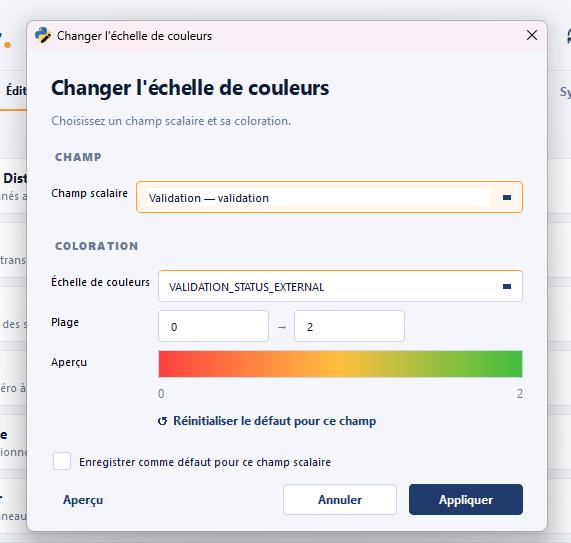
Change color scale
Shortcut: Ctrl+L
Opens the dialog that lets you choose:
- The active scalar field (for example
accuracy,overlap,out_profile,displacement, …) - The color palette applied to that field
- Optionally, the bounds (min/max) of the coloring
This is the natural companion of the Filters and Quality
control modules: computing a filter produces a scalar field,
Change color scale lets you visualize it.
Settings
Shortcut: Ctrl,
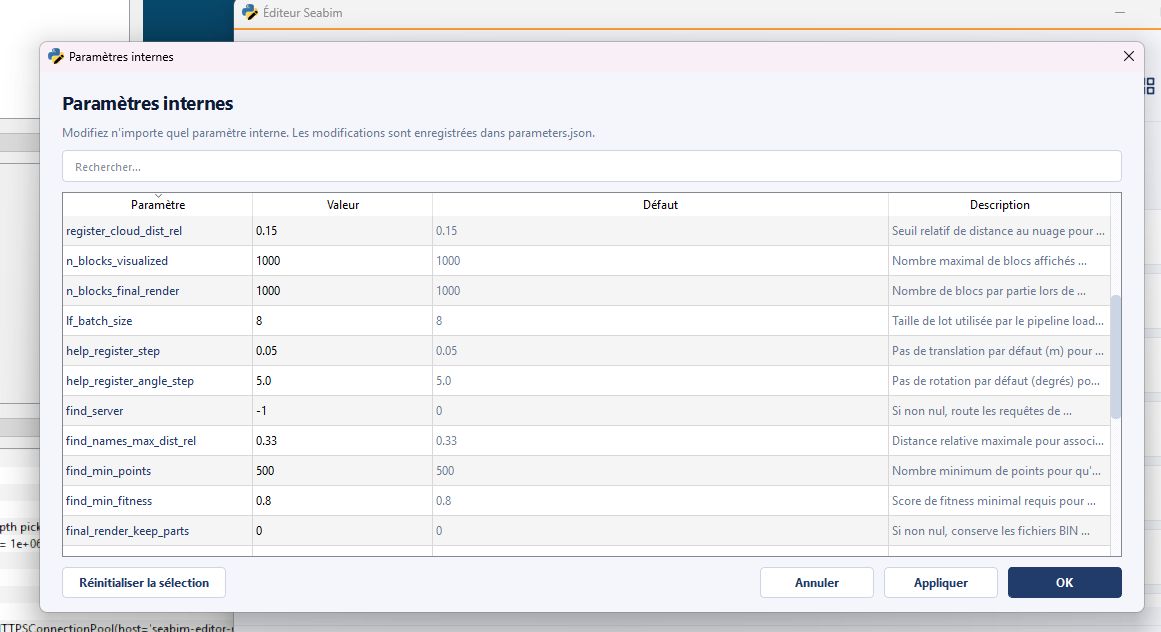
Opens the Settings dialog which edits the plugin's internal
parameters: action defaults, display options, debug flags (for example
enable_profiling), default filter thresholds, etc.
Changes are persisted to parameters.json in the user data folder
(%LOCALAPPDATA%\Seabim\ in installer mode, C:\Program Files\SEABIM\
in development mode).
Performance profiling
Enabling enable_profiling = 1 in Settings produces, on every action
click, a .prof file (cProfile) + a .txt file (top-30 cumulative)
in <DATA_FOLDER>/profiles/. Turn off after use; the overhead is
around 5–10% on instrumented actions.
Reduce window size
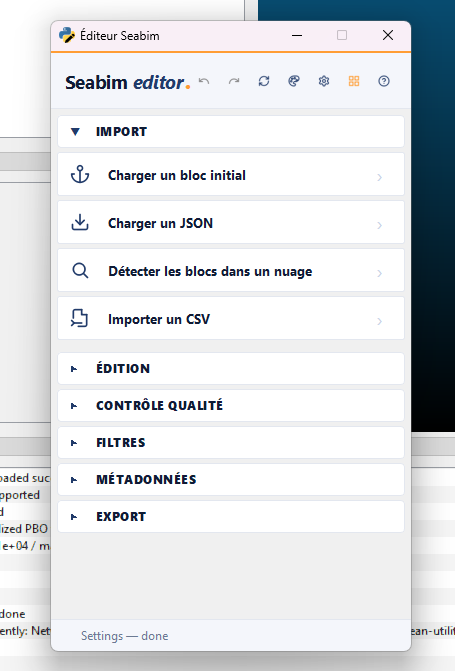
Switches the launcher between two layouts:
- Normal view: all modules visible as horizontal tabs (
Import,Edit,Quality control,Filters,Metadata,Export). - Compact view: vertical accordion sidebar, collapsible sections. Handy when you want to give more room to CloudCompare or work on a narrow screen.
The button works as a toggle: one click activates compact mode, a second click goes back to normal view.
Automatic switch
The launcher automatically switches to compact mode as soon as its window width drops below 600 pixels, and goes back to normal mode when widened. So you don't need to click the button if you just resize the window — the right mode is picked automatically.
Persistence
Compact mode is not remembered between launcher openings: each session starts in normal view.
Shortcuts help
Shortcut: F1
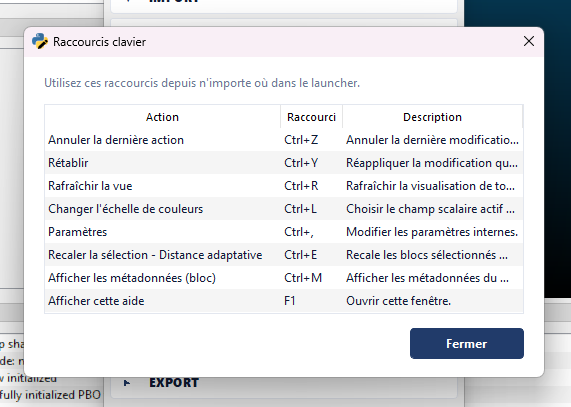
Opens a window listing every keyboard shortcut available in the current session, grouped by origin:
- The 7 header actions (Undo, Redo, Update view, Change color scale, Settings, Reduce window, Shortcuts help).
- The actions of the modules that declare a shortcut (for example
Register selection - Adaptive
  dist
with Ctrl+E orShow metadata (Block)with Ctrl+M).
Quick contextual help
F1 is an application-wide shortcut: it works from any tab, even when the focus is on a child dialog.