Import¶
The Import module groups the loading actions for structures: creation of an initial block from a cloud, opening of a JSON file, automatic block detection and import from an external CSV.
This is typically the first tab used at the start of a session.
Action availability
Some actions are conditioned by the WIBU license: Find blocks in a
point cloud only shows up if the BlockFinder bit is active in the
client's Feature Map.
Load init block¶
Creates an anchor block locked on the currently selected point cloud in CloudCompare. This block acts as a reference for subsequent operations (positioning, manual registration, etc.).
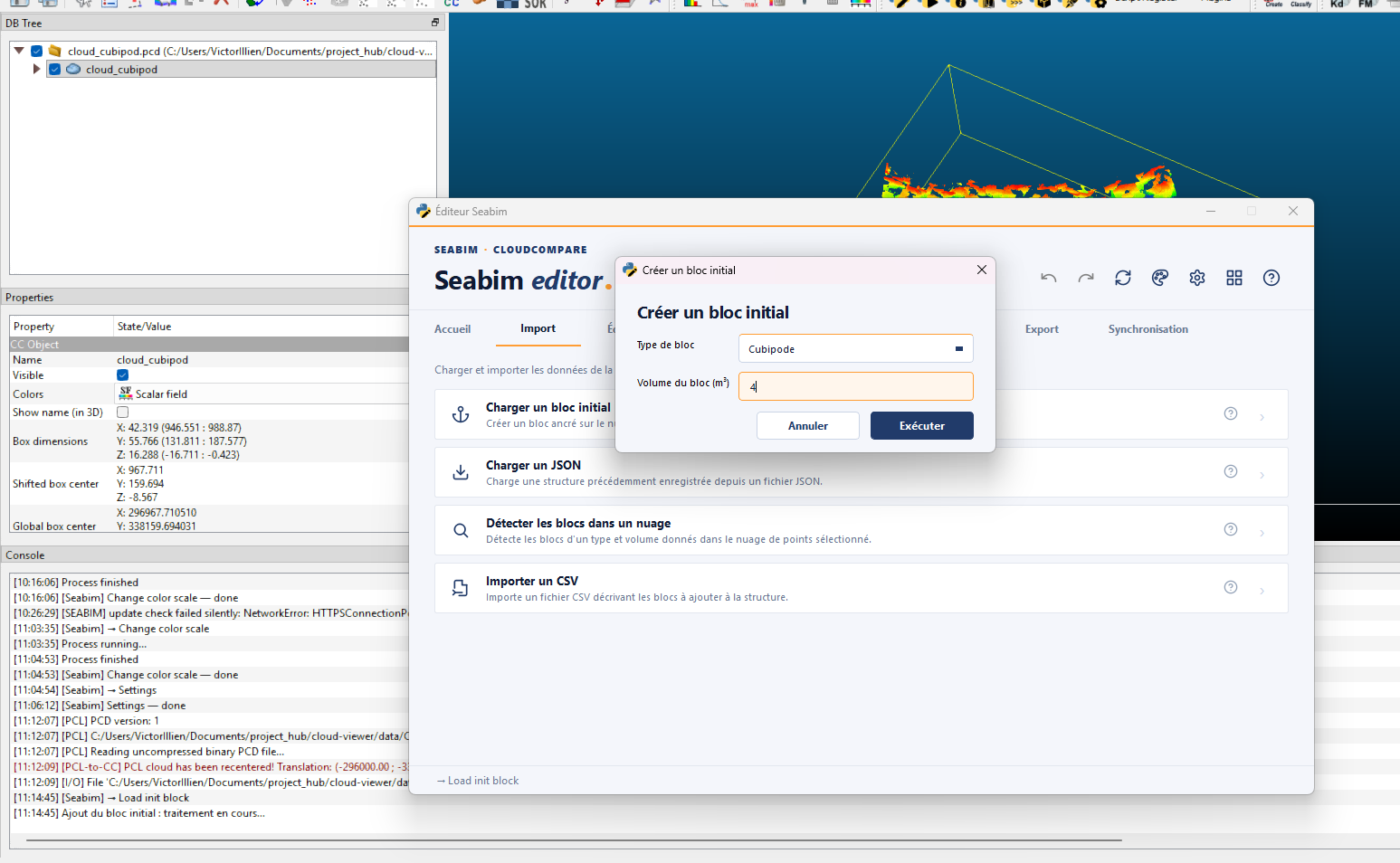
Use this action when working without automatic detection: place a
single block on the cloud, then duplicate and register each neighboring
block one by one via Help register and
Register selection - Adaptive
dist.
This is also the action used to start a project without a BlockFinder license: the structure is built manually from a single reference block.
Load JSON¶
Opens a previously saved structure JSON file (see Save
JSON).
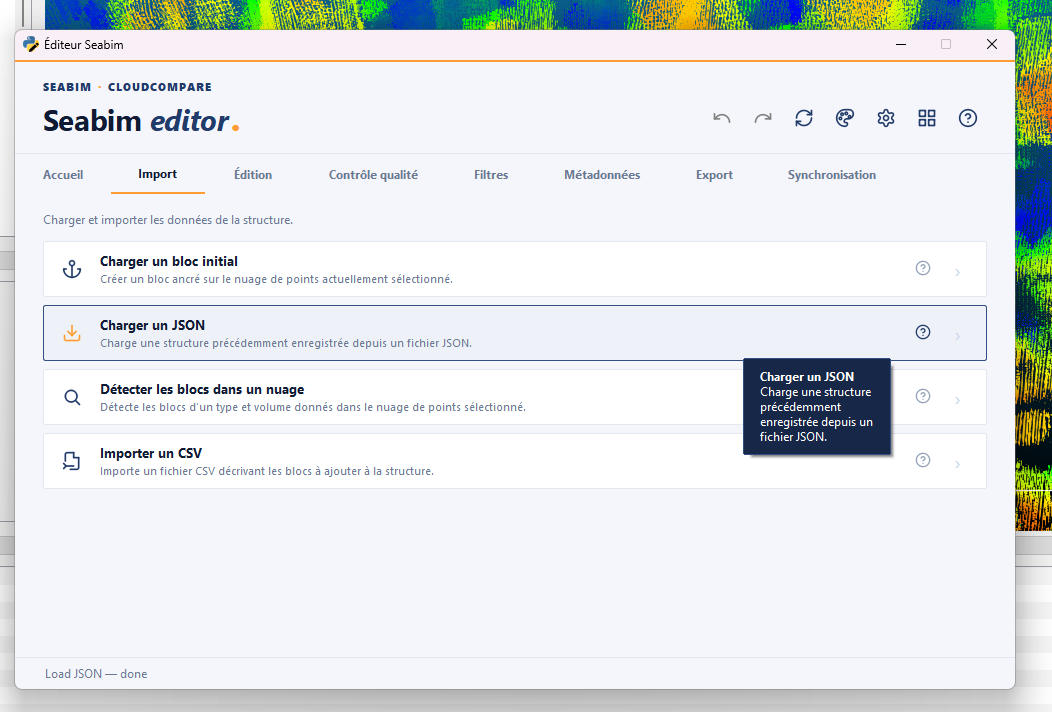
This is the action used to resume a project: pull the last delivered
JSON (suffix _find, _filtered, _manual_n depending on the
milestone — see Structure file
naming) and
continue the work where it was left off.
Autosave
If the previous session ended badly (CloudCompare crash, brutal
shutdown), the launcher keeps an autosave.json in the user data
folder. Loading this file restores the state right before the
incident.
Find blocks in a point cloud¶
Automatically detects blocks of a given type and volume in the
selected point cloud. The produced structure can then be cleaned via
Filter blocks and refined with Register
selection - Adaptive dist.
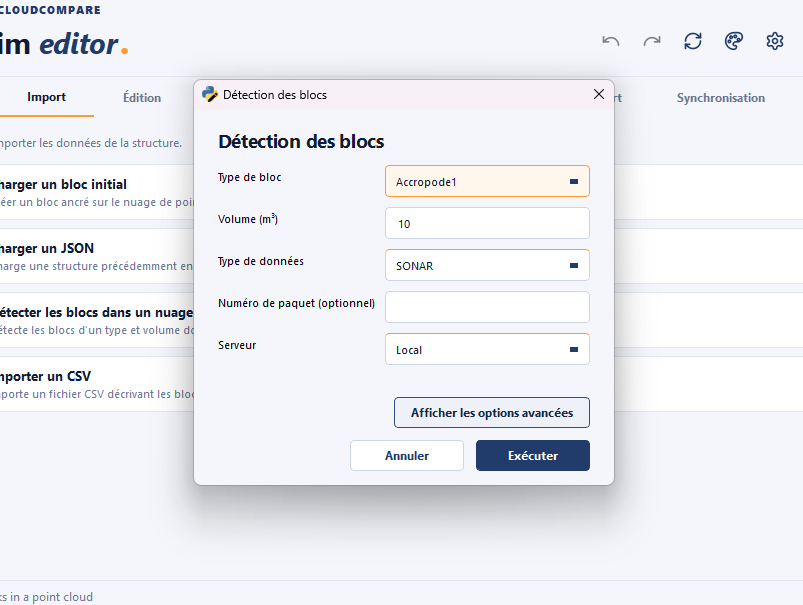
This is the entry point of the automatic reconstruction workflow described in Standard procedure § Automatic reconstruction. Several detections may run in parallel in distinct CloudCompare windows to process different zones simultaneously.
Detection best practices
- Run detection on a cloud cut into zones of 500 m max (see cloud cutting) to limit computation time and ease batch processing.
- Always apply
Filter blocksright after detection to remove false positives before manual registration.
License-gated action
This action is only available if the workstation's license includes the BlockFinder feature. Without that right, the button does not appear in the Import tab.
Import CSV¶
Imports a CSV file describing the blocks to add to the structure.
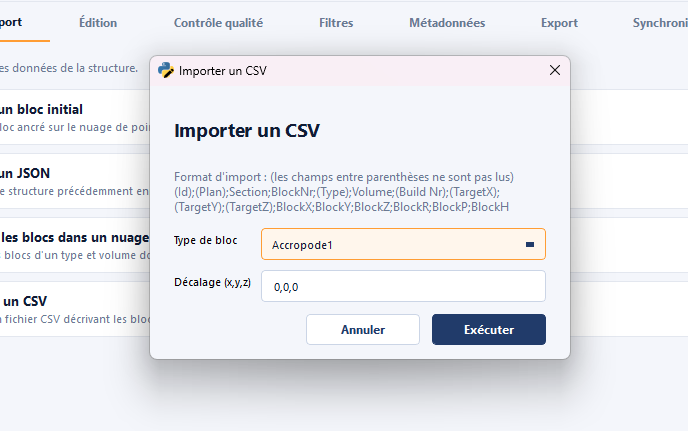
Useful to inject a list of positions coming from an external tool (theoretical placement plan, export from another software, file produced by a business script) without going through automatic detection. The blocks are created at the CSV positions; their fine registration on the cloud still needs to be done via the Edit module.
CSV format
The CSV expects one column per metadata field (typically X/Y/Z position, type, volume, plot number, …). The exact format is documented in File formats § CSV files.