Installation
SEABIM Editor is a plugin for CloudCompare 2.13. It is installed
through a turn-key Windows installer that drops the plugin (DLL + Python
scripts) in CloudCompare's plugins/ folder and registers the WIBU
license.
Prerequisites
| Software | Version | Link |
|---|---|---|
| Windows | 10 or 11 (x64) | — |
| CloudCompare | 2.13 | https://www.cloudcompare.org/release/CloudCompare_v2.13.2_setup_x64.exe |
| CodeMeter Runtime (license) | latest | https://www.wibu.com/support/user/user-software/file/download/17494.html |
CloudCompare 2.13 required
The plugin is compiled for CloudCompare 2.13. It will not load in version 2.12 or earlier, and has not been tested on 2.14+ builds.
Step by step installation
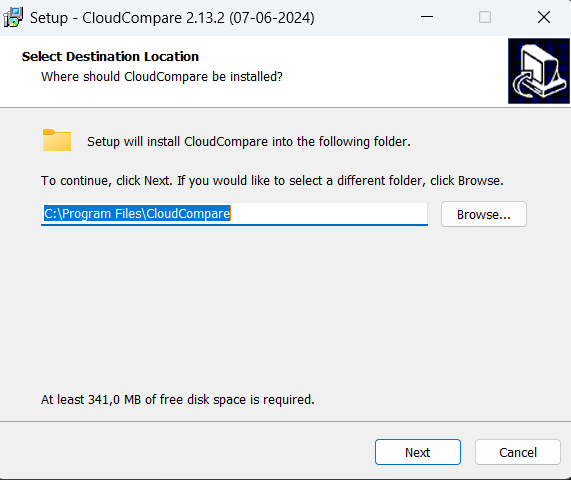
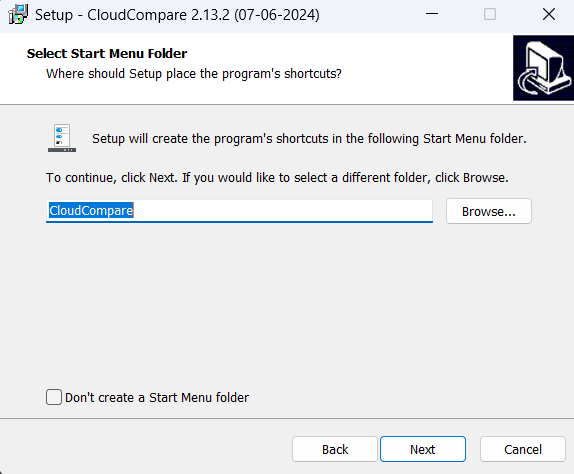
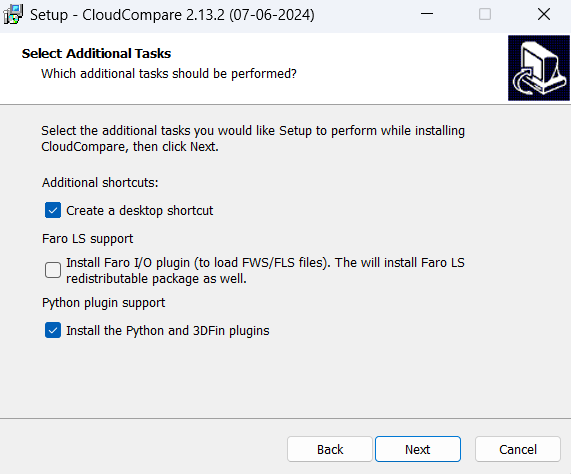
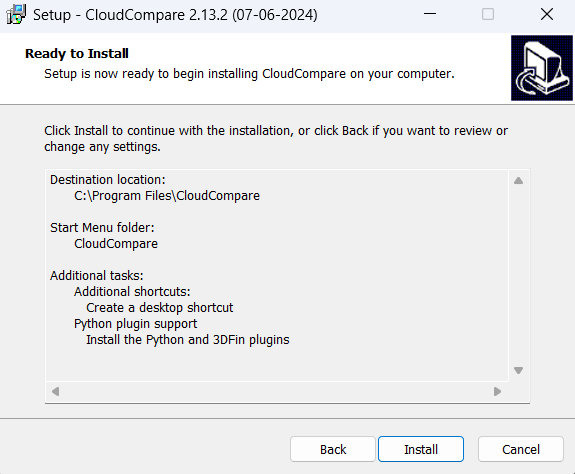
1. Install CloudCompare 2.13
Download the Windows installer from the CloudCompare official website and follow the standard procedure, making sure to enable the Python plugins.
2. Install CodeMeter Runtime
The WIBU CodeMeter licensing system is required to activate SEABIM Editor. Install CodeMeter Runtime.
3. Run the SEABIM Editor installer
Double-click SeabimEditor-Setup-X.Y.Z.exe (provided by your SEABIM
contact) and follow the wizard.
The installer:
- Drops the plugin DLL into
C:\Program Files\CloudCompare\plugins\ - Drops the Python bundle (
scripts/,data-bundled/) in the same folder - Creates the user data folder in
%LOCALAPPDATA%\Seabim\ - Installs the language files (
.qm) FR / EN / AR
4. First activation in CloudCompare
- Launch CloudCompare 2.13.
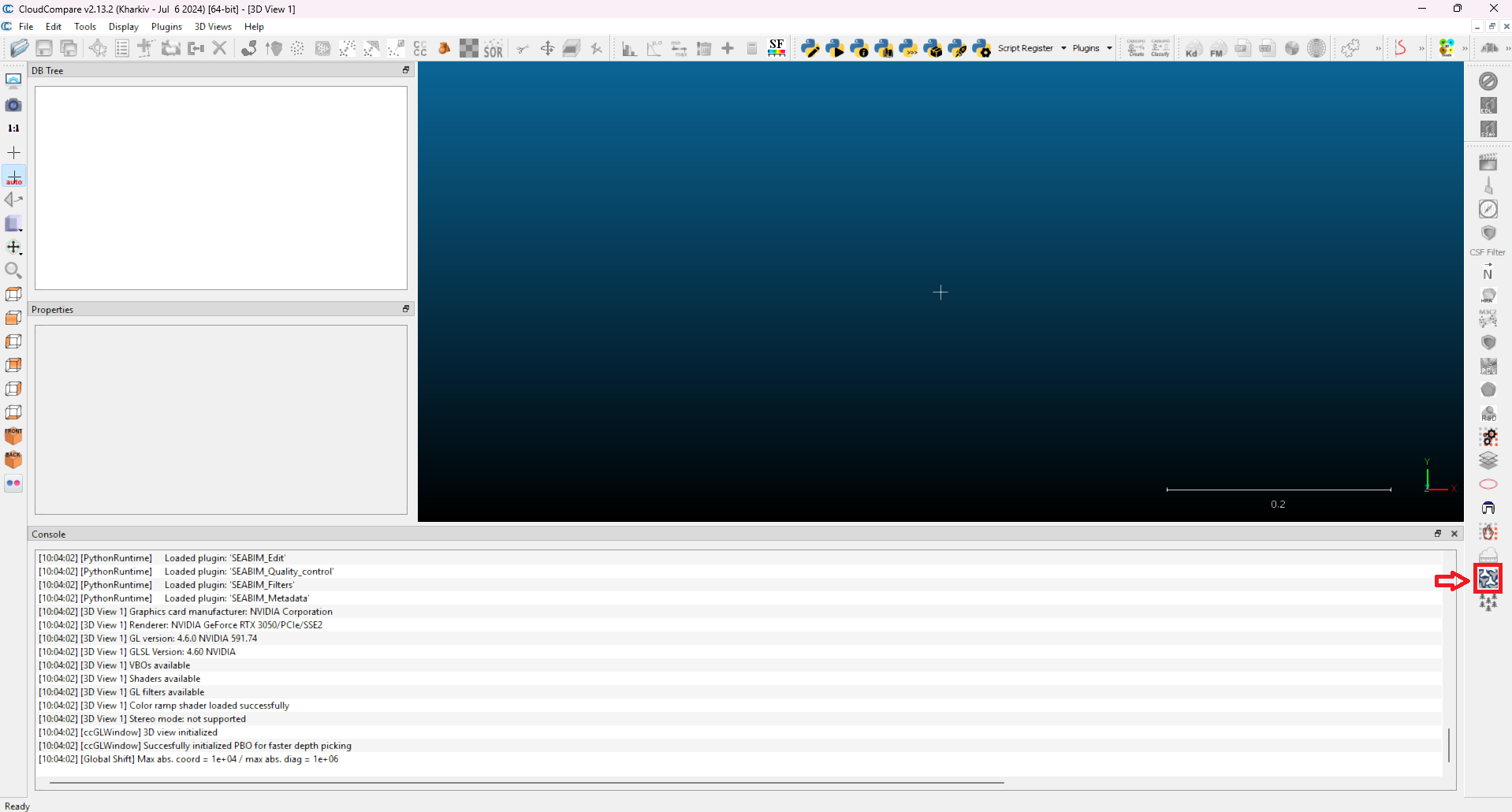
- The SEABIM Editor plugin appears in the main toolbar with its icon.
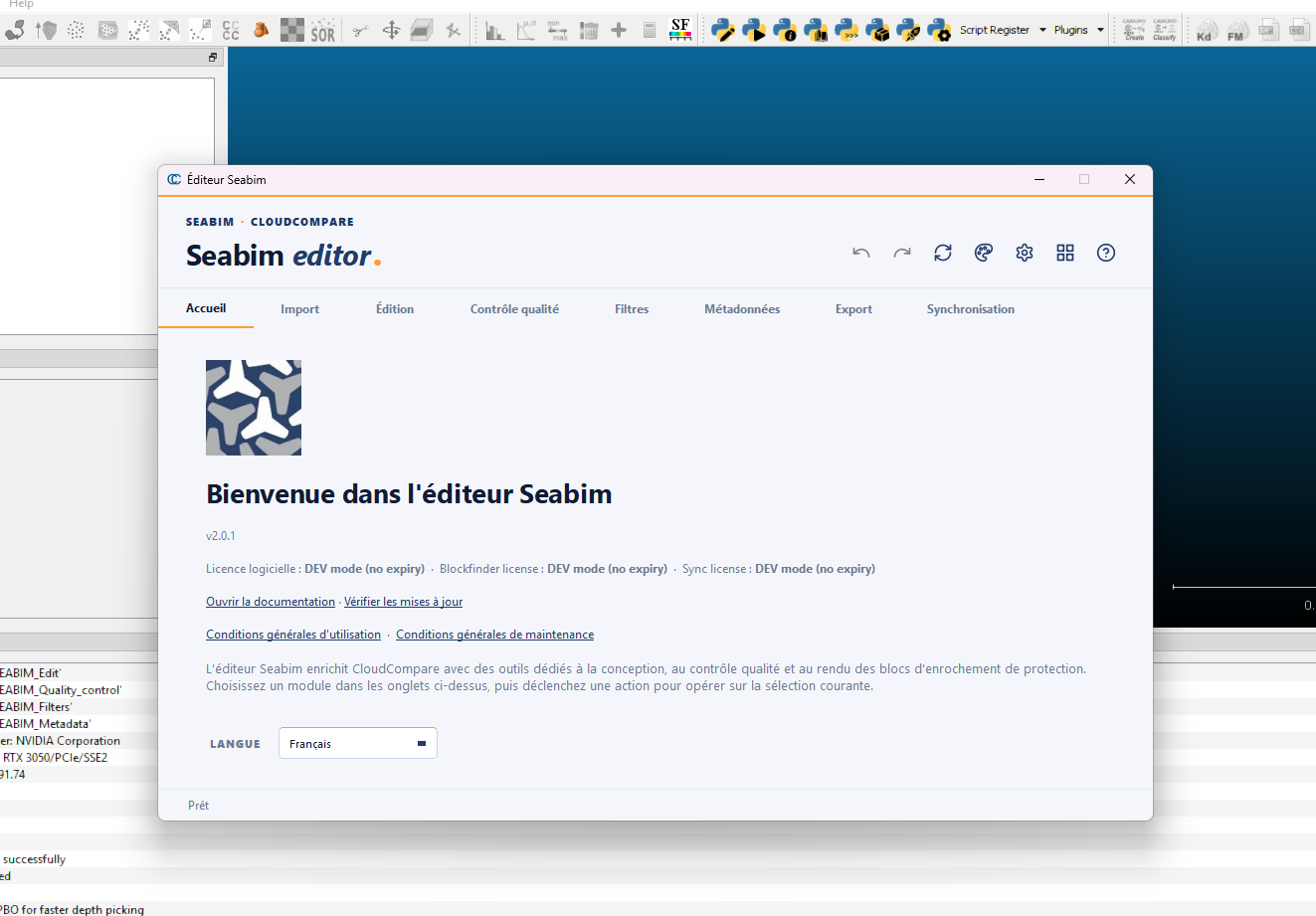
- Click the icon → the license check runs.
- On success, the SEABIM Editor launcher opens with the tabs
available depending on your Feature Map (for example
Find blocks in
   a point cloud
only appears if the BlockFinder bit is active on your license).
If no license is active yet on the workstation, follow the detailed License activation procedure.
Uninstallation
Go through Control Panel → Programs and Features → SEABIM Editor →
Uninstall. The operation removes the DLL and the bundle but keeps
user data in %LOCALAPPDATA%\Seabim\ (parameters, profiles, exchanges).
To start fully from scratch, also remove this folder manually after uninstallation.
Troubleshooting an installation issue
| Symptom | Probable cause | Action |
|---|---|---|
| The SEABIM icon does not appear in CloudCompare | DLL not loaded (wrong CC version, or plugin disabled) | Check CC version = 2.13. Go to Plugins → SEABIM Editor in the CC menu. |
| "Invalid license" message on launch | WIBU key missing / not detected | Check CodeMeter Runtime is installed and the license is valid. Open CodeMeter Control Center to confirm. |
Import tab without Find blocks in a point cloud |
BlockFinder bit is not in your license Feature Map | Check with your SEABIM contact for the authorized features. |
| Silent crash at launch | Python error caught | Check %LOCALAPPDATA%\Seabim\log\crash.log. |